How To

❓ How to Create an Epic in Jira
In Jira we have a few possibilities on how to create an Epic. In this short guide we will walk you through all of them so you can pick the best. Dive in now!
Table of content
Create an epic from your Timeline
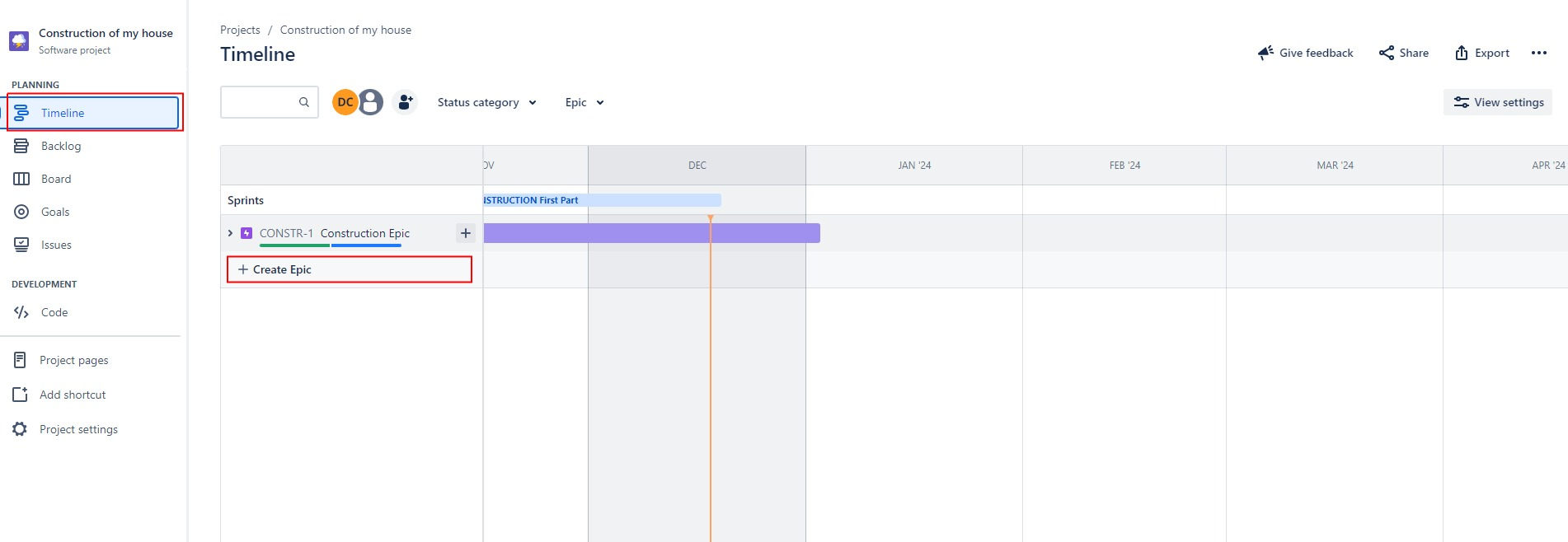
- Access your timeline from the menu on the far left (if you don’t see such an option go to … (upper right corner) > Configure Board > Features > Select Timeline and allow it to be displayed
- Within the timeline click on Create Epic
- Fill in the information (Title, Description etc.)
Create an epic from a new issue
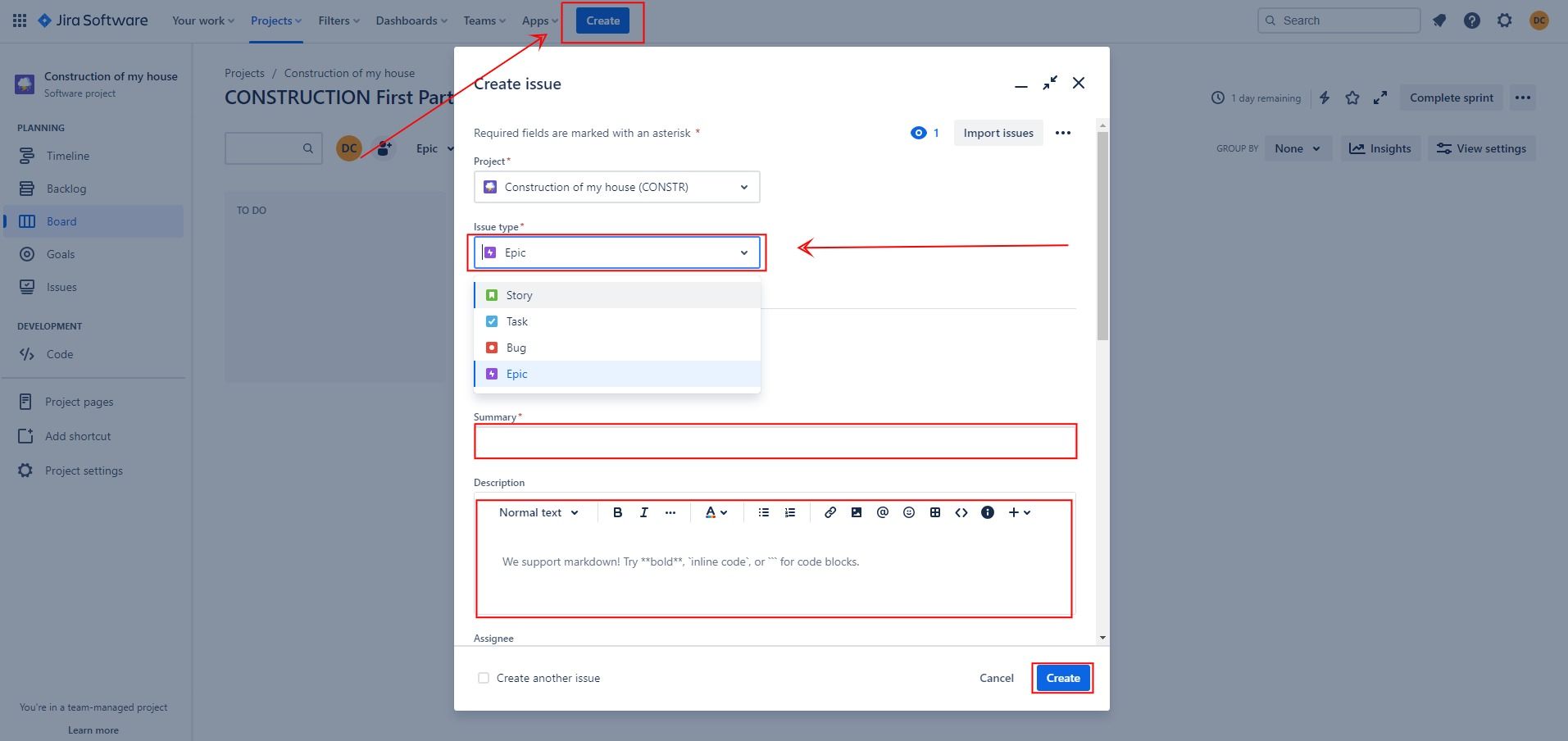
- Click on the Create button in the middle of global navigation panel (top of the screen)
- In the Issue Type field select Epic
- Fill in the information (Title, Description etc.)
Create an epic from the backlog
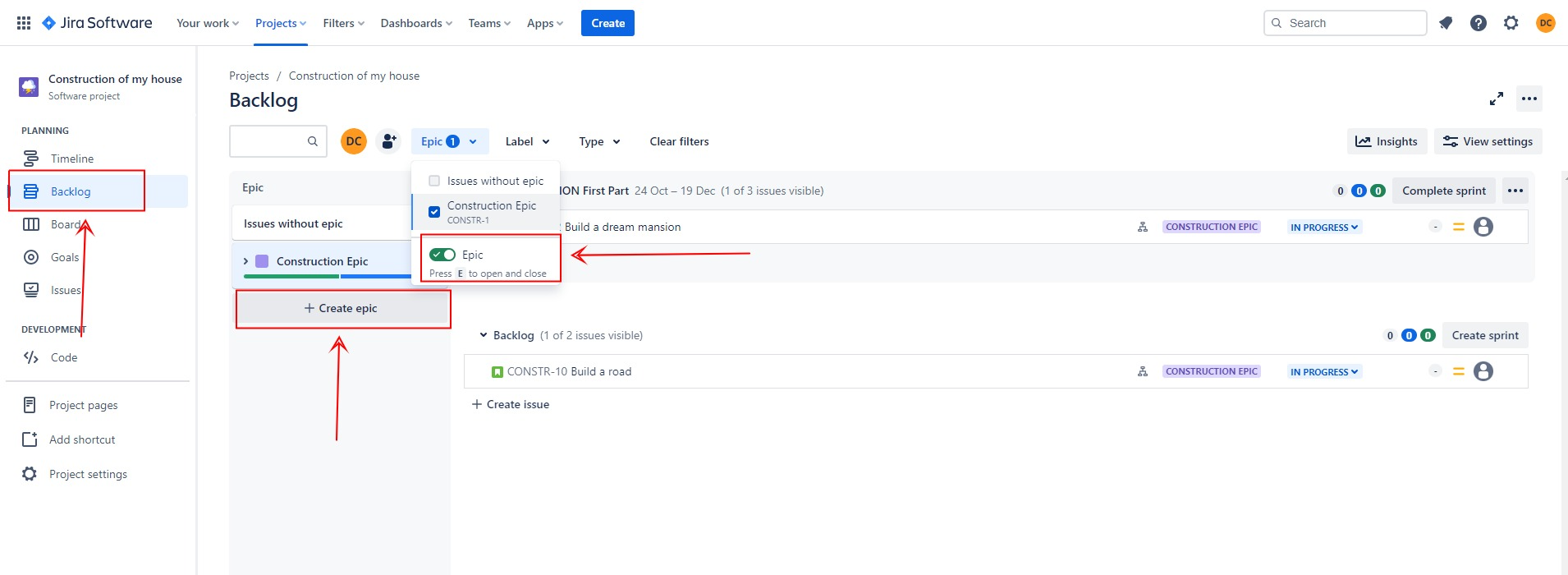
- Access your backlog (menu on the left side of your screen)
- Allow Epic panel to be displayed in the top menu
- Within your Backlog click on Create Epic
- Fill in the information (Title, Description etc.)
Creating an epic in Jira is a breeze. Whether you prefer an approach through the Timeline, the direct creation from a new issue, or the organized route via the backlog, our guide has you covered. Now armed with the knowledge of these diverse methods, you have the freedom to choose the one that best aligns with your workflow.
If you want to learn more visit official Atlassian resources!